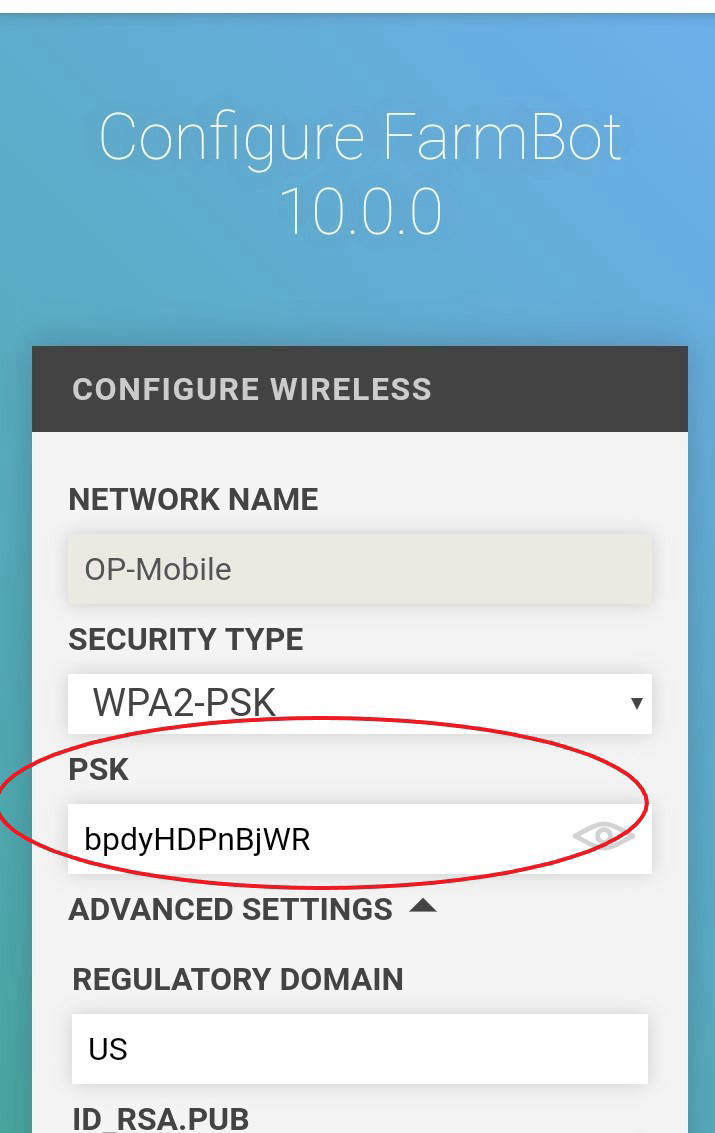
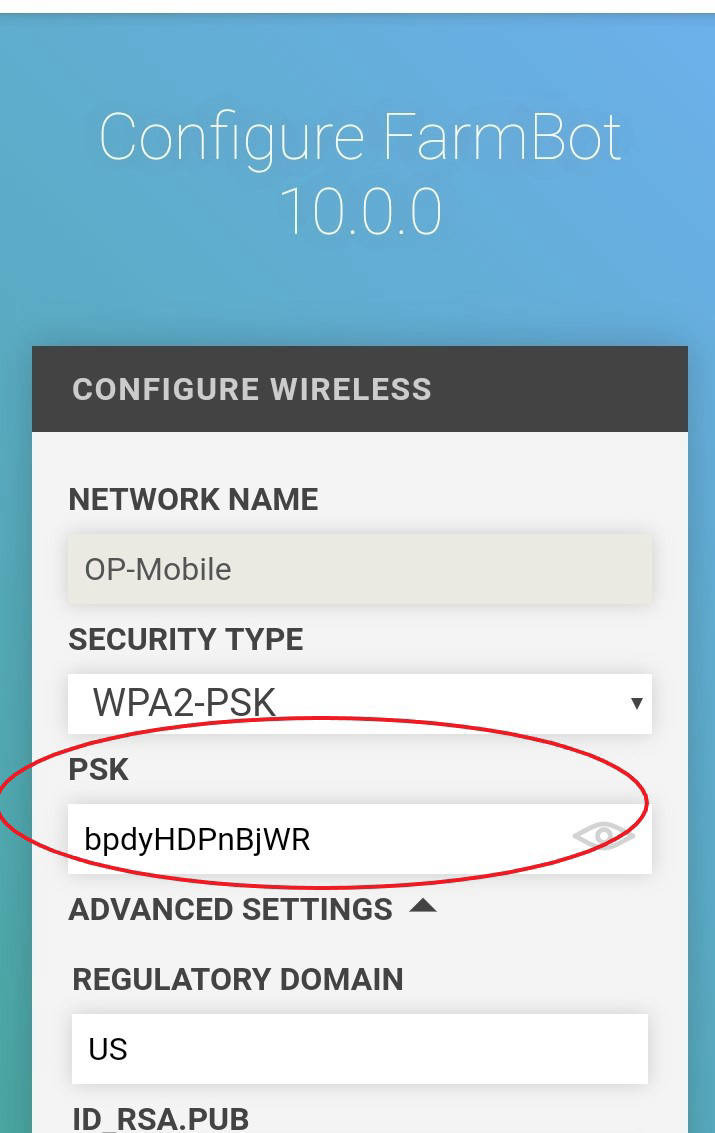
Farmbot is to be connected to the OP-Mobile network using the psk of "bpdyHDPnBjWR"
The key used above is specific to the Farmbot MAC address (if you purchase a new pi for Farmbot you will have to request a new key for that pi's MAC address), this key will place the device on vlan 35 of OP-Mobile which gives the device unrestricted port access.
The students will then connect their devices to the "eduroam" network using their polytech login - student i.e. pangdw1@op.ac.nz instead of pangdw1@student.op.ac.nz
The password is also the same as their polytech password.
From a fresh install you will need to:
Part One:
- Connect to the Farmbot Wi-Fi
- Open a browser and enter 192.168.24.1 to connect to Farmbot
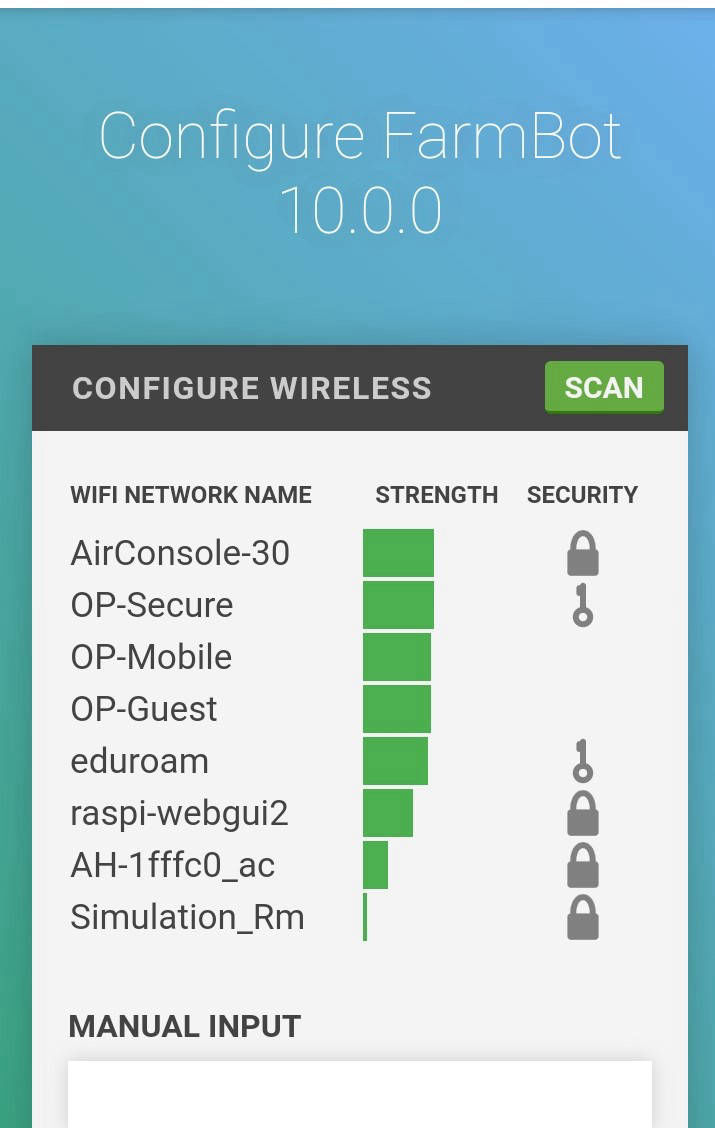
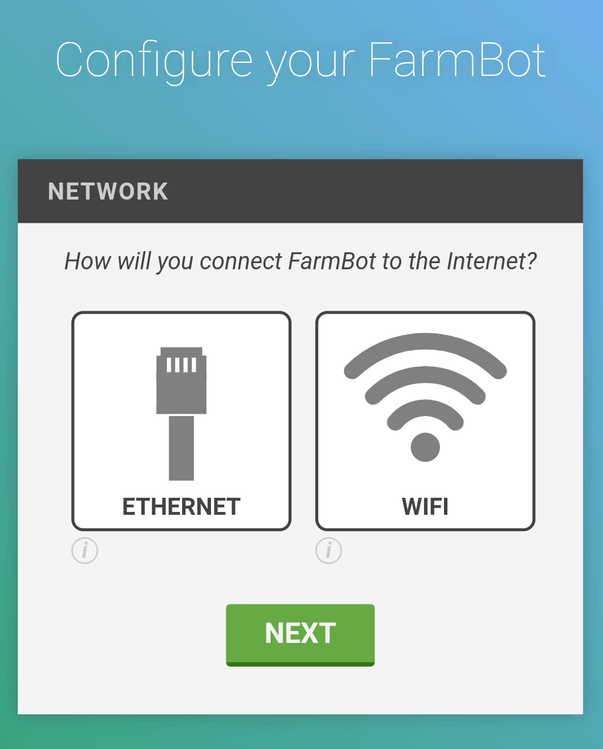
- Choose Wi-Fi
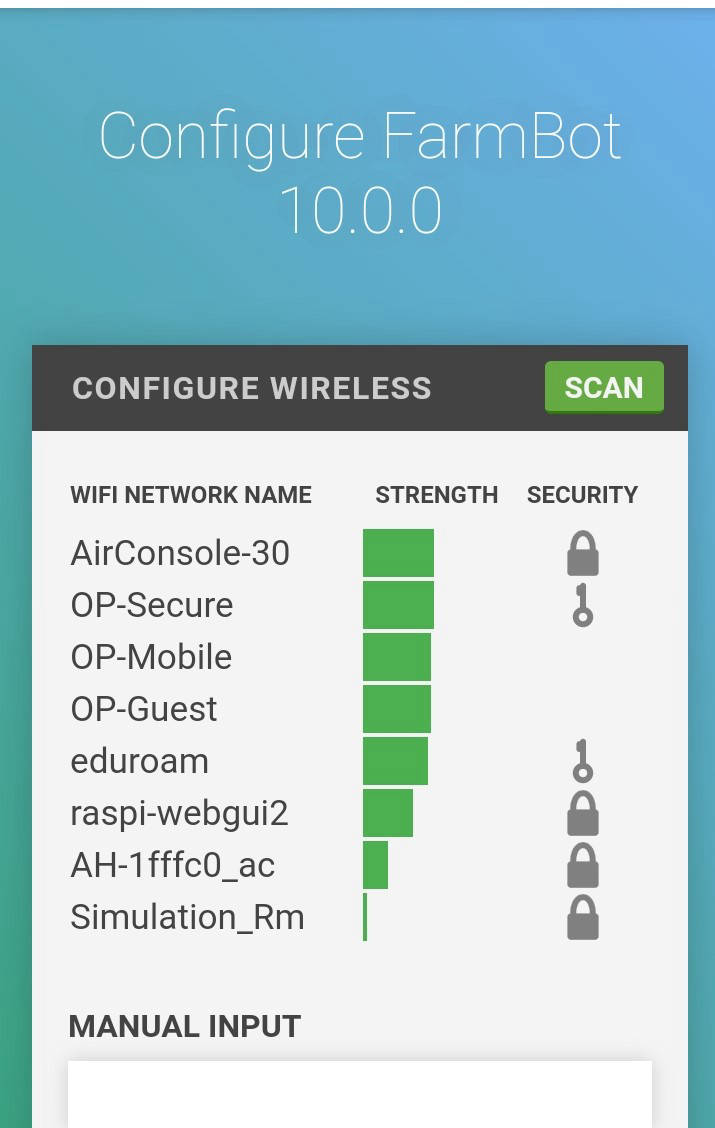
- Because for some reason when you see the available networks there will be no key required for the OP-Mobile network you will instead have to. Click on manual input and type in "OP- Mobile"
- You will then be asked to put in a key (use the key listed above in quotes"
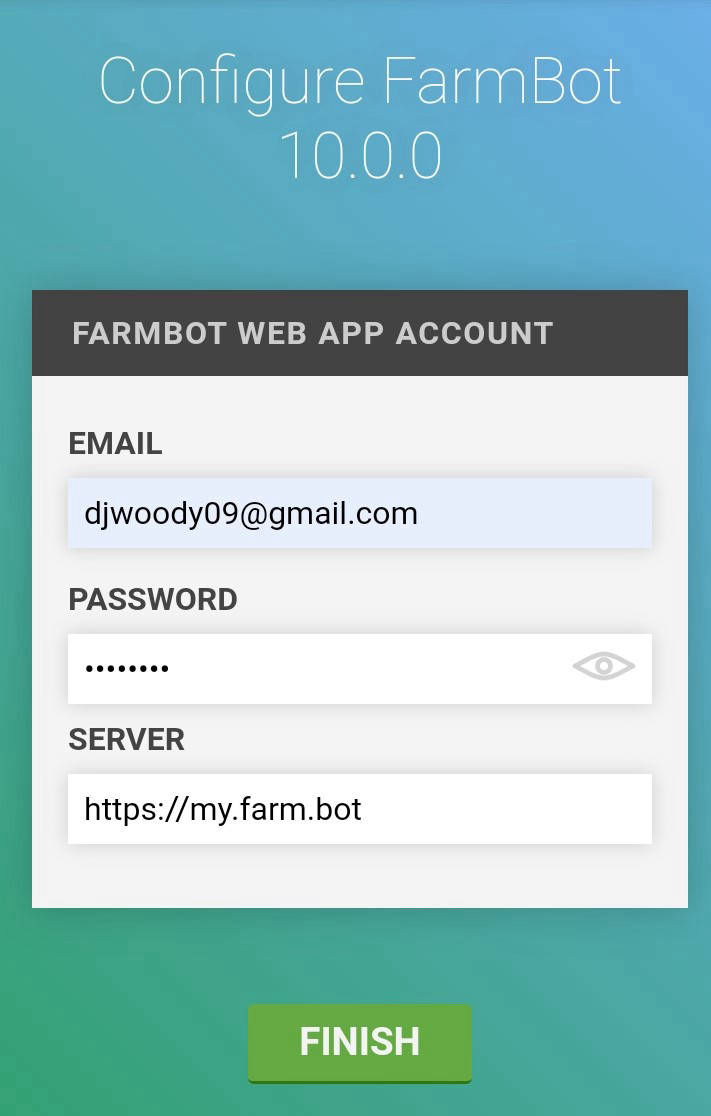
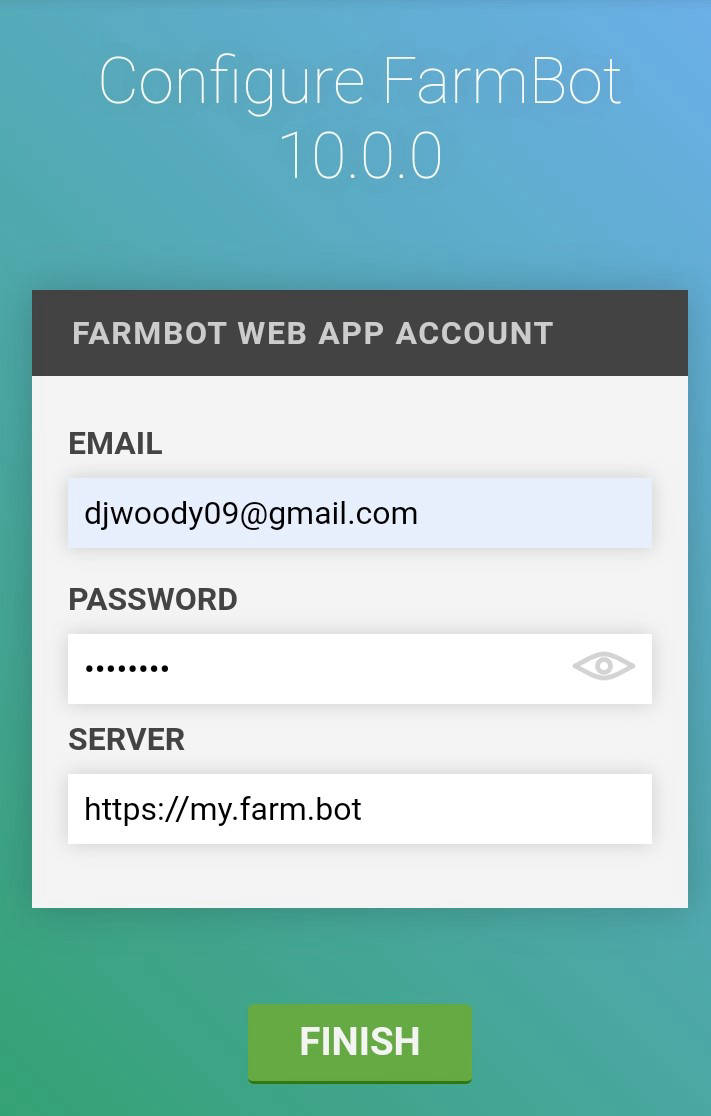
- You will then be asked to supply a Farmbot account, whichever account you use in this step will need to be shared with the Farmbot group as they will need to use that account in order to connect
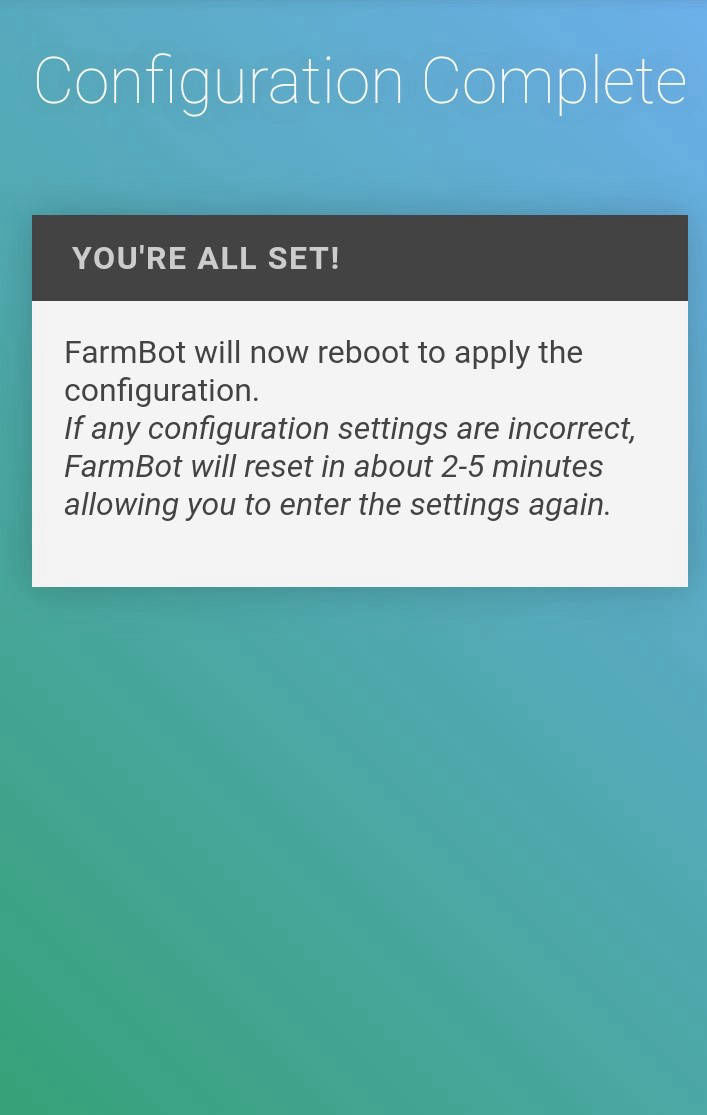
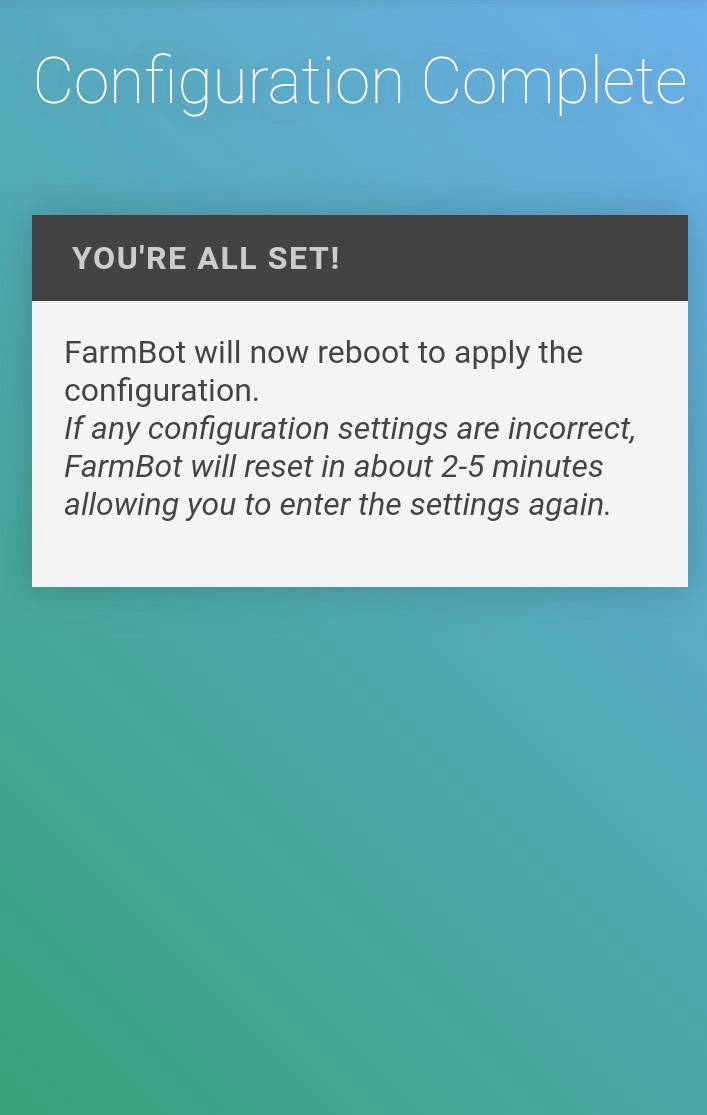
- Farmbot will then proceed to connect to the OP-Mobile network
Part Two:
- The students will then need to connect to the eduroam network on their device
- Once connected you can then enter "my.farm.bot" *you could change the name when you first set the Farmbot up but how many Farmbot will there be at polytech* into your devices web browser to connect to Farmbot
- Once on the Farmbot browser you will need to go to the device tab and change it to the Arduino/RAMPS firmware
One might think because the Farmbot is on OP-Mobile and the device is in eduroam network that they won’t be able to connect but they can.